Posts Tagged ‘PowerShell’
SP 2010: How to create a PowerShell Snapin Cmdlet – Part 2
June 8th, 2010 by Tobias Zimmergren
Author: Tobias Zimmergren
http://www.zimmergren.net | http://www.tozit.com | @zimmergren
Introduction
In my previous article (How to create a PowerShell Snapin – Part 1) I talked about the general approach to create a custom PowerShell Cmdlet. However, in Part 1 I did not talk about how you create SharePoint 2010 specific Cmdlets. That’s what this article is all about.
So without further ado, I will quickly brief you on how you can create a custom PowerShell Cmdlet for SharePoint 2010 using the SPCmdlet base class.
In my example I will create a very simple Cmdlet you can use to automatically create demo-sites for use in demo-purposes or development scenarios so you don’t have to go about creating all the different sites by hand, and without a need to create scripts to do the same.
Creating a custom PowerShell Cmdlet that talks with SharePoint 2010
I will add some functionality to my previous project (found in my previous article) and extend that project with some custom SharePoint 2010 specific Cmdlets to get your started with writing PowerShell cmdlets for SP 2010.
In order to do this, we should derive from a subclass of the type SPCmdletBase. The following base classes deriving from SPCmdletBase are available:
1. Create a new Cmdlet (SPNewCmdletBase)
- Create a new Class and name it something of your own preference (I chose this silly name: SPAwesomeness.cs)
- Add a reference to the following two namespaces:
using Microsoft.SharePoint;using Microsoft.SharePoint.PowerShell; - Add the following base code to your class:
using System;using System.Management.Automation;using Microsoft.SharePoint;using Microsoft.SharePoint.PowerShell;namespace Zimmergren.SP2010.PowerShell{[Cmdlet(VerbsCommon.New, "SPCreateDemoSites")]
public class SPAwesomeness : SPNewCmdletBase<SPWeb>
{protected override SPWeb CreateDataObject()
{throw new NotImplementedException();
}
}
}
As you can see in the code above I’ve got a class called SPAwesomeness which derives from the SPNewCmdletBase class which in turn derives from the SPCmdletBase. SPNewCmdletBase should be derived from when you create a Cmdlet that should create and save data to SharePoint.
Also note that we’re using the Attribute [Cmdlet] to set a name for our command, in this case SPCreateDemoSites.
When deriving from this class, you need to implement at least one method override, in this case CreateDataObject. This is where our magic will take place!
2. Add some logic to your custom SharePoint Cmdlet
Now that we’ve got the basic code up and out of the way, we need to add some logic to actually make something happen.
I’ve added some very simplistic code to create some Demo-sites based on the available templates in your installation. It looks like this:
using System;
using System.Management.Automation;
using Microsoft.SharePoint;
using Microsoft.SharePoint.PowerShell;
namespace Zimmergren.SP2010.PowerShell
{
[Cmdlet(VerbsCommon.New, "SPCreateDemoSites")]
public class SPAwesomeness : SPNewCmdletBase<SPWeb>
{
// Let's add a mandatory parameter that indicates that you need
// to specify a value for this property through the PS console
[Parameter(Mandatory = true,
ValueFromPipeline = true,
Position = 0,
HelpMessage = "Specify an existing site to extend with demo sites")]
public string SiteUrl { get; set; }
protected override SPWeb CreateDataObject()
{
var site = new SPSite(SiteUrl);
try
{
// SharePoint Server Publishing Infrastructure feature
site.Features.Add(new Guid("f6924d36-2fa8-4f0b-b16d-06b7250180fa"));
}catch(Exception ex)
{ /* Empty catch block is not recommended
*/}
SPWeb demoWeb = CreateBaseDemoSite(site);
// When we're done, you'll get this object returned to the PS console
return demoWeb;
}
private static SPWeb CreateBaseDemoSite(SPSite site)
{
// Creates a Blank Site which will host all the Demo-sites
SPWeb web = site.AllWebs.Add(
"DemoSite",
"Demo Sites",
"Demo Sites",
1033,
"STS#1",
false,
false);
web.QuickLaunchEnabled = true;
CreateDemoSites(web);
return web;
}
private static void CreateSite(SPWeb parentWeb, string url, string template)
{
string desc = " created by Tobias Zimmergren's custom cmdlets";
parentWeb.Webs.Add(url,
url + " demo",
url + desc,
1033,
template,
false,
false);
}
private static void CreateDemoSites(SPWeb web)
{
SPWebTemplateCollection webTemplates =
web.GetAvailableWebTemplates((uint)web.Locale.LCID, true);
foreach (SPWebTemplate template in webTemplates)
{
try
{
CreateSite(web,
template.Title.Replace(" ", ""),
template.Name);
}
catch (Exception ex)
{ /* Empty catch block is not recommended
*/ }
}
}
}
}
3. Test your custom SharePoint 2010 cmdlet
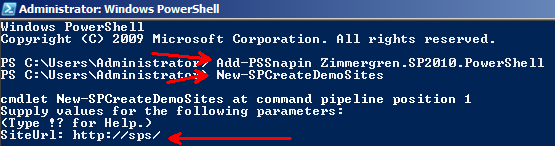
In order to test it, follow along with the steps I mentioned in my previous article (here) to deploy it – then call the new command you’ve created called New-SPCreateDemoSites like this:
It will ask you to supply the mandatory property (SiteUrl), so type in an existing url to an existing site collection and execute like this:
Now you’ll need to wait for a few minutes. What’s happening now is that your Cmdlet is creating a site called "Demo Sites" and will add a whole bunch of sub-sites to that new site.
Navigate to your new site called "Demo Sites" and you should see something like the following sub-sites created:
Summary & Download
Quite easily you’ve created your first SharePoint 2010 Cmdlet extension to operate with the SPCmdletBase classes. In this case we’ve created a new site called Demo Sites and added a bunch of sites to that new site, as per the available templates on your server.
Download project
You can download my sample project here
Enjoy this awesomeness!
- Posted in Technical
- No Comments
- Tags: How-To, PowerShell, SharePoint, SharePoint 2010
SP 2010: How to create a PowerShell Snapin – Part 1
June 7th, 2010 by Tobias Zimmergren
Author: Tobias Zimmergren
http://www.zimmergren.net | http://www.tozit.com | @zimmergren
Introduction
In this article I will talk about how you can get started with creating custom PowerShell commands for SharePoint 2010 that you can use.
You will see how easy it actually is to build a custom class library that in turn is an extension to the PowerShell console and will add a couple of extra commands according to your preference.

The reasons for wanting to do this is an endless list, but as an example if you’ve got repeated tasks you’ll need to perform that are not available out of the box, you can create them yourself and then use normal PowerShell scripts to execute your code. That way you can easily build your own custom commands (CmdLet) for PowerShell which basically extends the functionality to support whatever scenario you’ve got.
You might remember that in SharePoint 2007 you could extend the STSADM.EXE command with something called STSADM Extensions. The approach I’m talking about in this article is pretty much the same concept – extending the build-in commands of your PowerShell console by adding custom code.
How to create a PowerShell Snapin
Download the Windows SDK in order to get the
System.Management.Automation.dll file for PowerShell easily accessible.
1. Create a new Class Library project
Start out by creating a new Visual Studio 2010 Class Library project and give it a proper name.
I’ve named mine Zimmergren.SP2010.PowerShell.
Add assembly references
- Add a reference to System.Management.Automation
- This DLL is located in:
C:Program FilesReference AssembliesMicrosoftWindowsPowerShellv1.0
(if you installed the Windows SDK as I told you earlier on in this article) - Add a reference to System.Configuration.Installation
You should now have the following reference added:
2. Create a PowerShell Installer class
In order for our PowerShell Cmdlet to work, we need to create an installer-class. This class is called when you install the SnapIn/Cmdlet and will provide the system with some information like where it comes from and what it’s supposed to do.
Start out by creating a new class in your project, I named mine PowerShellInstallerClass.cs. Next, add the following code to that class:
using System.ComponentModel;
using System.Management.Automation;
namespace Zimmergren.SP2010.PowerShell
{
[RunInstaller(true)]
public class PowerShellInstallerClass : PSSnapIn
{
public override string Name
{
get
{
return "Zimmergren.SP2010.PowerShell";
}
}
public override string Vendor
{
get
{
return "Tobias Zimmergren";
}
}
public override string Description
{
get
{
return "Tobias Zimmergren's awesome PowerShell Cmdlets";
}
}
}
}
This essentially provides some information to the system upon installation of your SnapIn.
3. Create a PowerShell Cmdlet class
Now you need to continue this venture by creating a new class in your project. I named mine TestCmdlet1.cs.
Use the [Cmdlet()] attribute on your class to tell the system that it’s going to be a Cmdlet for PowerShell like this:
using System.Management.Automation;
namespace Zimmergren.SP2010.PowerShell
{
[Cmdlet(VerbsCommon.Get, "TestCmdlet1")]
public class TestCmdlet1 : PSCmdlet
{
}
}
Next, you should override the methods you want to execute your code and add some dummy-code. There’s a couple of different methods to use here:
- BeginProcessing()
- EndProcessing()
- ProcessRecord()
- StopProcessing()
You should make sure your class looks like this so we can test the first part out:
using System.Management.Automation;
namespace Zimmergren.SP2010.PowerShell
{
[Cmdlet(VerbsCommon.Get, "TestCmdlet1")]
public class TestCmdlet1 : PSCmdlet
{
protected override void BeginProcessing()
{
WriteObject("BeginProcessing() method - Execution has begun");
}
protected override void ProcessRecord()
{
WriteObject("ProcessRecord() method - Executing the main code");
}
protected override void EndProcessing()
{
WriteObject("EndProcessing() method - Finalizing the execution");
}
}
}
4. Deploy the new PowerShell Snap-ins
Since this is a generic Class Library-project, we need to create some kind of deployment script to make sure that our Cmdlet gets deployed when we build our project.
There are two requirements for deploying and installing our PowerShell Cmdlet:
- Deployed to the server (Using GACUTIL)
- Installed on the server (using INSTALLUTIL)
In this sample project I’m simply adding two lined in the Post-Build actions like this::
You’ll find the post-build events if you click project properties and go to this box:
5. Project overview
Your project should look something like this:
6. Test your PowerShell Snapin
In order to test our project, we now just need to build the Visual Studio project and the post build scripts will automatically hook up our assembly in the GAC and use INSTALLUTIL to install the Cmdlet.
To try the commands out, you need to launch a powershell console and type in the following command:
Add-PSSnapin Zimmergren.SP2010.PowerShell
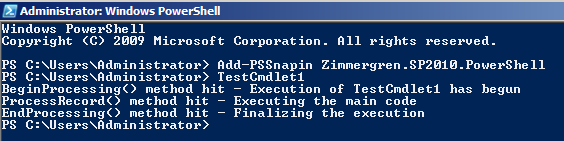
Now you should be able to just call your command (in my case, it’s called TestCmdlet1) like this:
TestCmdlet1
This should bring your the following output in your PowerShell console window:
Great, our very first PowerShell cmdlet is created – and we have validated that it works!
Summary & Download
In this article we talked about how you create a general PowerShell Cmdlet in order to extend the capabilities in your PowerShell consoles. There’s no business logic incorporated in this sample, that’s up to you to implement in your projects. You’ve got the starting point to get sailing on the great PowerShell seas right here!
In my next article (Part 2) I will talk about the SharePoint 2010 specific details for creating a custom Cmdlet for your SharePoint installations. It will cover how you create custom Cmdlets to interact with the SharePoint 2010 object model in a nice way.
Download
Enjoy!
- Posted in Technical
- No Comments
- Tags: How-To, PowerShell, SharePoint, SharePoint 2010