
PostRank Topblogs 2009 - #20 in Sharepoint

Windows Live Alerts web tracker
Chat with me if I'm online!
search blog
most popular
MCP MCTS MCT MVP

How To: Custom Web Part Properties (ToolPart) 

I’ve been getting a few requests from people who basically want to know how you can modify the Web Part Properties window – and foremost add your own logic and controls there.

Prerequisites

  • SharePoint 101 basic knowledge
  • Knowledge about how you build and deploy Web Parts in SharePoint
  • (Really, you can just download the entire project in the end of this article and skip the pre-reqs.)

Intro

I will walk you through how you can add your own custom controls in the Web Part property pane, instead of relying on the standard controls.

Sometimes you’re just required to have a bit more advanced controls put in place which the default functionality can’t deliver. That’s where the ToolPart comes in handy!

In this case the ToolPart will do a lookup and see what Lists (SPListCollection) exists on the current site, and populate a simple DropDownList with the values.

Important note
I havn’t fully implemented the properties etc. in this Web Part in a manner you would preferbly do it – I’m simply focusing on the topic of the custom toolpart.

Overview

Default property pane (in this case, ListViewWebPart for Contacts)
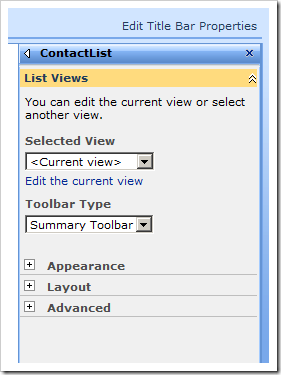
image

Custom ToolPart pane with custom logic for the controls
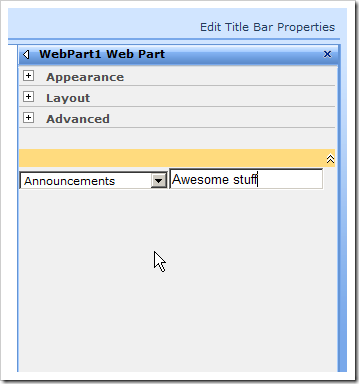
image

Example of using the Web Part properties in the Web Part

image

Walkthrough

  • Launch Visual Studio (2008 in my case)
  • Create a new Web Part in your preferred way (I actually used the Extensions for WSS for once..)
  • WebPart1.cs Add the properties you want to your webpart
  • public string Property1
    {
         get
         {
             return _property1;
         }
         set
         {
             _property1 = value;
         }
    }
    string _property1;
    public string Property2
    {
         get
         {
             return _property2;
         }
         set
         {
             _property2 = value;
         }
    }
    string _property2;

  • WebPart1.cs Override the Render()-method in order to simply output the properties we just created
  • protected override void Render(HtmlTextWriter writer)
    {
        base.Render(writer);
        writer.Write(Property1);
        writer.Write("<br/>");
        writer.Write(Property2);
    }

  • WebPart1.cs Override the GetToolParts()-method in order to alter the toolpane
  • public override ToolPart[] GetToolParts()
    {
        ToolPart[] allToolParts = new ToolPart[3];
        WebPartToolPart standardToolParts = new WebPartToolPart();
        CustomPropertyToolPart customToolParts = new CustomPropertyToolPart(); 

        allToolParts[0] = standardToolParts;
        allToolParts[1] = customToolParts;
        allToolParts[2] = new CustomToolPart(); 

        return allToolParts;
    }

What we’re doing here is firstly instantiating the WebPartToolPart class which gives us the standard toolpart. Next we’re adding the CustompropertyToolPart which adds a custom property toolpart. Finally we’re adding our CustomToolPart to the collection of ToolParts and then we’re returning the collection – telling SharePoint that this is how we want it to render!

  • CustomToolPart.cs Create a new class called CustomToolPart and derive from Microsoft.SharePoint.WebPartPages.ToolPart
  • public class CustomToolPart : Microsoft.SharePoint.WebPartPages.ToolPart
    {
            DropDownList ddl;
            Panel toolPartPanel;
            TextBox tb; 

            protected override void CreateChildControls()
            {
                toolPartPanel = new Panel();
                ddl = new DropDownList();
                ddl.ID = "ddl"; 

                // Simply getting the lists of the current web, and displaying them in the dropdown-list.
                SPListCollection lists = SPContext.Current.Web.Lists;
                foreach (SPList list in lists)
                    ddl.Items.Add(list.Title);

                tb = new TextBox();
                tb.ID = "tb"; 

                toolPartPanel.Controls.Add(ddl);
                toolPartPanel.Controls.Add(tb);
                Controls.Add(toolPartPanel);
                base.CreateChildControls();
            } 

            public override void ApplyChanges()
            {
                WebPart1 wp = (WebPart1)this.ParentToolPane.SelectedWebPart;
                wp.Property1 = ddl.SelectedValue;
                wp.Property2 = tb.Text;
            }
    }

The only noteworthy thing in this class is the override of ApplyChanges which basically tells our WebPart (this.PartenToolPane.SelectedWebPart is WebPart1) that it should set it’s properties to the values in the custom property toolpart we’ve created.

Summary & Download

That was easy enough – this was just a really swift intro to how you can manage your own controls and behaviour for your webparts properties.

You may download the VS2008 project here.

Enjoy

 
Posted on 29-Nov-08 by Tobias Zimmergren
274 Comments  |  Trackback Url  |  Link to this post | Bookmark this post with:        
Tags:
 

Links to this post (Trackbacks/Pingbacks)

Comments

Sunday, 30 Nov 2008 04:24 by Jenny Wilson
I had no idea this was something you could do this easy. I always thought it was more complicated,really!! A question that arises in my mind is; Shouldn't you declare the properties with like [WebBrowsable()] and stuff like that? I know you said you didn't do it in this article, but good would to know what is the _right_ way to do it also, not just how to do it quick :) thanks for a really great blog

Sunday, 30 Nov 2008 07:17 by Justin
Just what I needed! perfect - been looking for this for soo long.. ToolPart was what i needed to know. great stuff thanks a buinch!!!

Monday, 1 Dec 2008 01:29 by Dennis
I use this all the time nowadays.. Before I used to do normal properties, but then webpart toolpart properties. they rock. a bit more work, but lots of better!

Thursday, 4 Dec 2008 10:40 by Steven King
this is good tips

Wednesday, 10 Dec 2008 09:52 by Annie Coldsledge
Hi. Thanks for this article, it's a good description!

Wednesday, 7 Jan 2009 08:19 by Alan
thanks alot for the article

Wednesday, 7 Jan 2009 11:07 by Grace
good this. been looking how to do this. thx

Wednesday, 11 Feb 2009 07:58 by Praveen
Good starting point for me !!

Tuesday, 10 Mar 2009 01:44 by Rodolfo Cardoso
Good post, just what i'm looking for. Your code really helped me. Thanks. Keep developing.

Wednesday, 25 Mar 2009 05:58 by Alon F
Good post thank you. Is there a way to store the values been set to the web part because each time i refresh the page the values reset

Friday, 27 Mar 2009 04:52 by Maxime LECOEUR
thanks a lot for this source,it was helpfull for me ! i have down a drop down list that contains the lists' name of my root web site. how can i put the fields of the selected list in a second drop down list ? for the momenti have a working solution but it necessits to click 2 times on apply ! thanks you Maxime LECOEUR do you know how to make a first drop down list that contains

Sunday, 7 Jun 2009 09:50 by Tobias Zimmergren
Alon; Did you save the properties before you refreshed the page?

Wednesday, 17 Jun 2009 05:11 by jamil haddadin
hi, you really did a great job, I recently came across many posts for you, they are really awesome! I have a note here; when you work with webparts developement; Microsoft recommends you inherit from Microsoft.SharePoint.WebPartPages.WebPart not Microsoft.SharePoint.WebPartPages.WebPart (which is kept for backword compitablity with WSS 2.0), I think all you need to do is to replace the parent class then ToolPart[] with EditorPartCollection and finally GetToolParts() with CreateEditorParts() Keep up good work! Jamil Haddadin

Tuesday, 11 Aug 2009 12:39 by Oscar Fortuny
Great Woork!! Thank you for share with us.

Monday, 23 Nov 2009 12:02 by

Thursday, 26 Nov 2009 07:51 by Vinoth
thanks alot for the great article.Please let me know how to store & load the property data. -Vinoth.

Thursday, 26 Nov 2009 04:03 by Nicola
Awesome article it works like a charm, i customized it for my needs and its super cool. I was just wondering how could I store the property in the textbox cuz each time I open the tool pane the txtbox are empty. Thanks again!

Sunday, 20 Dec 2009 05:26 by Bhushan
Hi, great post!! do we also need to override SyncChanges Method?

Sunday, 10 Jan 2010 08:36 by glydayRaf

Thursday, 14 Jan 2010 04:29 by JefZomfoert

Sunday, 21 Feb 2010 07:52 by anil4kick
this is really simple and great stuff,,,thanks alot

Tuesday, 2 Mar 2010 07:03 by krish
Its very nice article..keep it on.

Thursday, 25 Mar 2010 08:58 by Snow_man
Thanks a lot for this source. I want to ask why I can't override function ToolPart[] GetToolParts

Monday, 5 Apr 2010 04:29 by Max Brassart
Hi 1) Comment: the project dont convert to VS 2010 RTM 2) Question: In a "visual webpart" how do you pass the toolbox parameters to the user control ? Thank you Max

Monday, 5 Apr 2010 04:39 by Max Brassart
Hi 1) Comment: the project dont convert to VS 2010 RTM 2) Question: In a "visual webpart" how do you pass the toolbox parameters to the user control ? Thank you Max

Tuesday, 20 Apr 2010 05:50 by

Friday, 21 May 2010 01:25 by Shiv
Good Job , Really helpfull.... Thanks

Sunday, 4 Jul 2010 02:03 by Tim
Project will not open for me in VS 08 or 2010. Get error not supported by this installation?

Tuesday, 6 Jul 2010 11:55 by

Name:
URL:
Email:
Comments: