
SP 2010: How To - Event Receivers and Custom Error Pages

SharePoint 2007
Many of you are aware that in SharePoint 2007, you can create Event Receivers (aka. Event Handlers) to take care of things for you when specific things happen. For example, you can subscribe to the ItemAdded event for a specific list, and have your custom code execute when the event fires.
Also, you are in SP 2007 able to cancel an event if you have the need for it, hence providing the user with an error message in the browser.
With SharePoint 2007 you had no way to customize this error message, and could only display the out-of-the-box message.
I’ve been getting the question about 1 million times – but never had any really good answer. Until now, where this specific functionality is built into SP 2010.
SharePoint 2010
The object model has been extended in various places, and this is one of the most welcome changes for me and a lot of my fellow peers doing daily SharePoint development.
So, in this article I will walk you through the news with Event Receivers in SP 2010 in regards to creating custom Error Pages for your users.
Creating an Event Receiver in SharePoint 2010 with a Custom Error Page
Using Visual Studio 2010, choose the new template called "Event Receiver" like so:

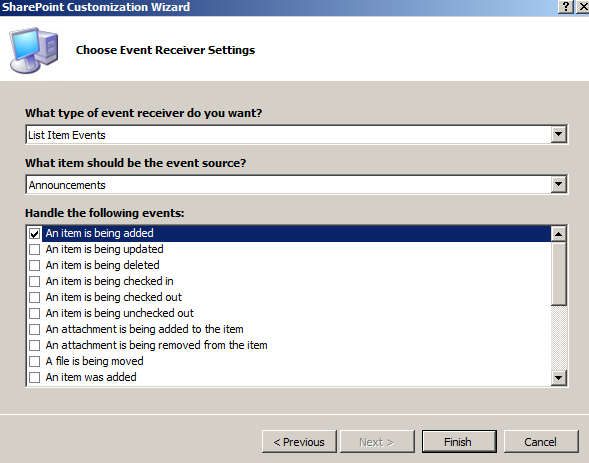
Choose if you want this to be a Farm Solution or a Sandboxed Solution. Then click next:
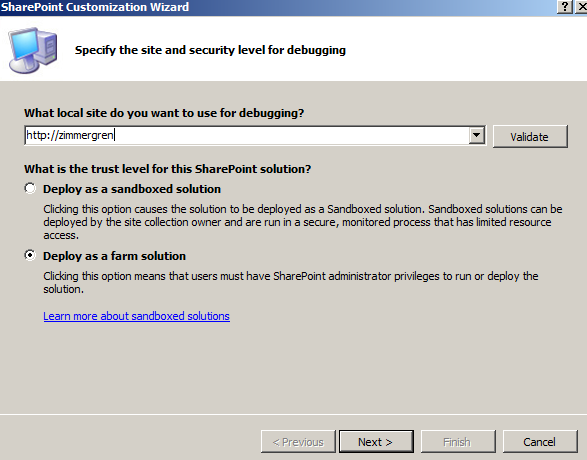
Finally, choose the Type of receiver you want to create, what event you would like to hook up and to what type. I chose "List Item Events", "Announcements" and "An item is being added":
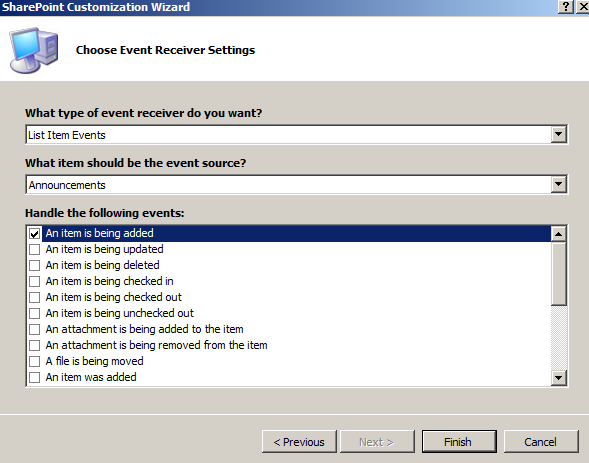
Click next and let Visual Studio 2010 work it’s magic.
You’re presented with the following project structure that is created for us:
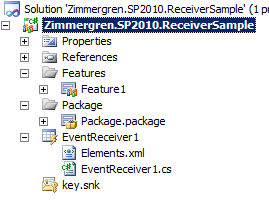
I will not dig deep on how and why the structure of the project looks the way it does now – it will be covered in another article.
- Adding some basic logic for your Event Receiver
In the EventReceiver1.cs file that you’re presented with, you can quite easily add any code you want – and some code has already been added so you don’t have to!
The code looks like this out of the box:
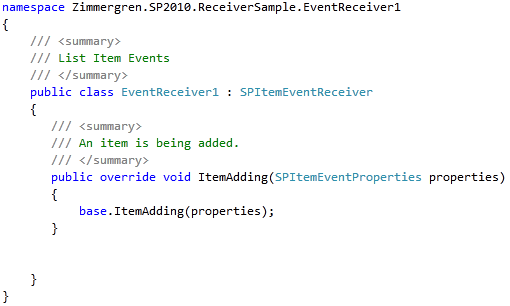
Now, what I want to do in order to make sure my event receiver works – is to simply add some dummy-code and have it tested!
Add the following code to your ItemAdding-method:
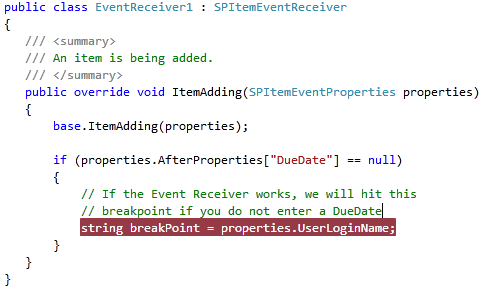
All we do here is check our item that is being added makes a condition to see if the DueDate property is set. The breakpoint is simply added because you easily should see that your code executes and works as expected.
- Press F5 to start debugging.
By pressing F5, Visual Studio will take care of the build, packaging and deployment of your Event Receiver. For more details on the actual F5-experience, I encourage you to read MSDN, SDK and all the blogs out there.
You are presented with a web page (VS 2010 launches IE for you as well), where you now can easily test your Event Receiver.
In our case, when adding a new Announcement, we should automatically check the DueDate property. Currently we don’t cancel the event or do anything else – let’s leave that to your imagination.
Cancelling an Event in SharePoint 2010
So – now that we’ve got a very basic Event Receiver in SharePoint 2010, we should add that Custom Error Page we talked about.
Start by adding a New Item to your project of type Application Page:
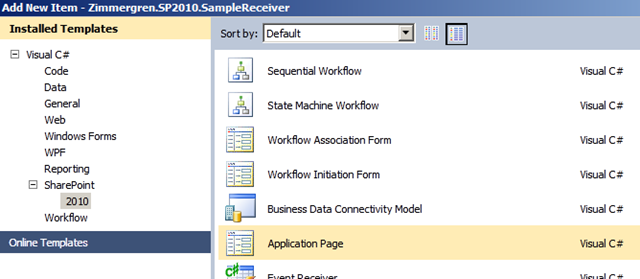
Visual Studio 2010 will now automatically add a mapped folder called "Layouts" which is mapping to the _layouts folder in the SharePointRoot (14-folder):
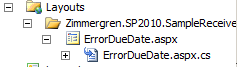
Edit the ErrorDueDate.aspx file to add some rich HTML:
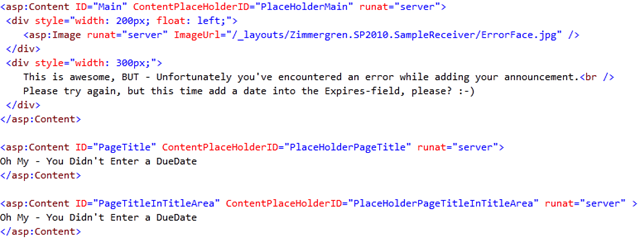
Note that I am referring to an image as well. I just popped that into the same Layouts-folder that was created for my Event Receiver project.
Edit your EventReceiver1.cs file and add the current logic:
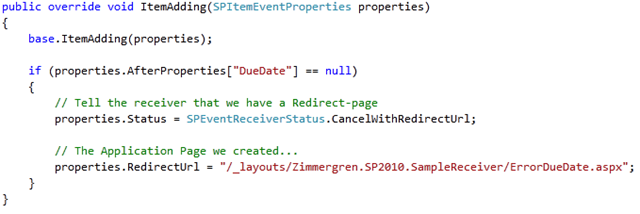
This will now cancel the event if the DueDate field is empty, and show the user a custom error page that you designed yourself.
Hit F5 and let Visual Studio 2010 work it’s magic again
Try it out by adding a new Announcement without adding a DueDate:
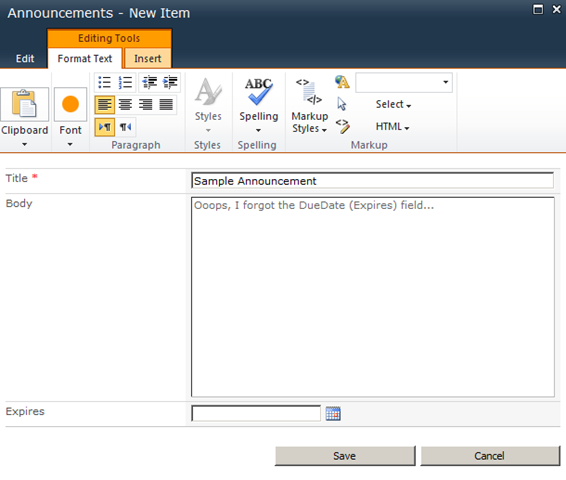
You should now be presented with the following dialog:

As you can see, your custom HTML now appears. Apparently I didn’t do any fancy design on my Application Page, but you can add more images and whatever else you want to make it more easy for the users to understand what actually went wrong – and how to make it on from there.
Summary
As easy as 1-2-3, you’ve created a new event receiver in SharePoint 2010 – and created a Custom Error Page upon which your users will land when they’re presented with the error – something that wasn’t really possible in 2007.
Enjoy!




Recent comments