I’ve been getting a few requests from people who basically want to know how you can modify the Web Part Properties window – and foremost add your own logic and controls there.
Prerequisites
- SharePoint 101 basic knowledge
- Knowledge about how you build and deploy Web Parts in SharePoint
- (Really, you can just download the entire project in the end of this article and skip the pre-reqs.)
Intro
I will walk you through how you can add your own custom controls in the Web Part property pane, instead of relying on the standard controls.
Sometimes you’re just required to have a bit more advanced controls put in place which the default functionality can’t deliver. That’s where the ToolPart comes in handy!
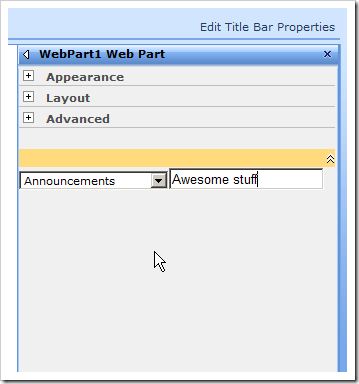
In this case the ToolPart will do a lookup and see what Lists (SPListCollection) exists on the current site, and populate a simple DropDownList with the values.
**Important note
**I havn’t fully implemented the properties etc. in this Web Part in a manner you would preferbly do it – I’m simply focusing on the topic of the custom toolpart.
Overview
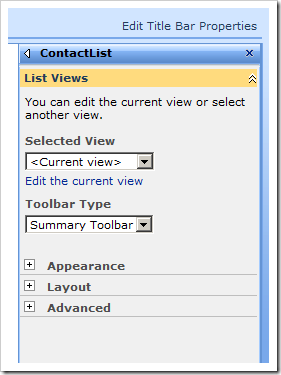
Default property pane (in this case, ListViewWebPart for Contacts)
Custom ToolPart pane with custom logic for the controls
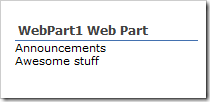
Example of using the Web Part properties in the Web Part
Walkthrough
-
Launch Visual Studio (2008 in my case)
-
Create a new Web Part in your preferred way (I actually used the Extensions for WSS for once..)
-
WebPart1.cs Add the properties you want to your webpart > public string Property1
> {
> get
> {
> return _property1;
> }
> set
> {
> _property1 = value;
> }
> }
> string _property1;
> public string Property2
> {
> get
> {
> return _property2;
> }
> set
> {
> _property2 = value;
> }
> }
> string _property2; -
WebPart1.cs Override the Render()-method in order to simply output the properties we just created > protected override void Render(HtmlTextWriter writer)
> {
> base.Render(writer);
> writer.Write(Property1);
> writer.Write("
");
> writer.Write(Property2);
> } -
WebPart1.cs Override the GetToolParts()-method in order to alter the toolpane > public override ToolPart[] GetToolParts()
> {
> ToolPart[] allToolParts = new ToolPart[3];
> WebPartToolPart standardToolParts = new WebPartToolPart();
> CustomPropertyToolPart customToolParts = new CustomPropertyToolPart(); > > allToolParts[0] = standardToolParts;
> allToolParts[1] = customToolParts;
> allToolParts[2] = new CustomToolPart(); > > return allToolParts;
> }
What we’re doing here is firstly instantiating the WebPartToolPart class which gives us the standard toolpart. Next we’re adding the CustompropertyToolPart which adds a custom property toolpart. Finally we’re adding our CustomToolPart to the collection of ToolParts and then we’re returning the collection – telling SharePoint that this is how we want it to render!
- CustomToolPart.cs Create a new class called CustomToolPart and derive from Microsoft.SharePoint.WebPartPages.ToolPart > public class CustomToolPart : Microsoft.SharePoint.WebPartPages.ToolPart
> {
> DropDownList ddl;
> Panel toolPartPanel;
> TextBox tb; > > protected override void CreateChildControls()
> {
> toolPartPanel = new Panel();
> ddl = new DropDownList();
> ddl.ID = “ddl”; > > // Simply getting the lists of the current web, and displaying them in the dropdown-list.
> SPListCollection lists = SPContext.Current.Web.Lists;
> foreach (SPList list in lists)
> ddl.Items.Add(list.Title); > > tb = new TextBox();
> tb.ID = “tb”; > > toolPartPanel.Controls.Add(ddl);
> toolPartPanel.Controls.Add(tb);
> Controls.Add(toolPartPanel);
> base.CreateChildControls();
> } > > public override void ApplyChanges()
> {
> WebPart1 wp = (WebPart1)this.ParentToolPane.SelectedWebPart;
> wp.Property1 = ddl.SelectedValue;
> wp.Property2 = tb.Text;
> }
> }
The only noteworthy thing in this class is the override of ApplyChanges which basically tells our WebPart (this.PartenToolPane.SelectedWebPart is WebPart1) that it should set it’s properties to the values in the custom property toolpart we’ve created.
Summary & Download
That was easy enough – this was just a really swift intro to how you can manage your own controls and behaviour for your webparts properties.
You may download the VS2008 project here.
Enjoy


Comments are closed
Archived comments
Warning CA2000 : Microsoft.Reliability : In method 'GetToolParts()', object 'standardToolParts' is not disposed along all exception paths. Call System.IDisposable.Dispose on object 'standardToolParts' before all references to it are out of scope, also with object 'customToolParts'
Awesome.
Great post, It works perfectly. It really helped me get started with custom tool parts.
Thanks!
Hi Max,
I'm glad it worked out for you. There's some room for improvements in this old post, so do take a look around (MSDN) for some more up-to-date samples if you'd like.
Edit: Take a look at Wictor's more up-to-date post of an Editor Part right here, which is far more valid for SharePoint 2010: http://www.wictorwilen.se/P...
Cheers,
Tobias.
Hi Tobias, I have problem with override, that:
"There is no suitable method for override".
p.s. SharePoint 2010 (Dec CU)
Hi Damir,
You should really have a look at how to create an Editor Part for your SharePoint 2010 projects instead of the 2007 Tool parts.
My mate Wictor wrote a great post about it here: http://www.wictorwilen.se/P...
Cheers,
Tobias.
Many thanks, Tobias! Really it's help me.
I'm glad, Damir. Enjoy.
Sorry, I'm forgot to say, that error showing for ToolPart[] GetToolParts()
Download fails would you be able to reupload thanks.
Hi James,
Check out the other comments, if you're looking for 2010-code then take a look in Wictors blog as mentioned in the other comments.
Cheers,
Tobias.
The project is not available anymore for download?
Hi Tobias
On a related subject, have you tried subclassing the CQWP then dynamically set the QueryOverride property with CAML string in say the OnInit() or CreateChildControls() event? I am trying to do this but the CQWP config UI only acknowledges "Some properties in this Web Part are not available because they are configured to have fixed values"; but doesn't seem to execute what appears a perfectly valid CAML query.
Thank you for this post. Works great!
Thanks.
Hi Tobias, somehow the solution cannot be downloaded anymore.
Hi Tobias,
I am new to sharepoint 2013. My requirement is to create a custom visual web part as an iframe and in the properties of it i want a tree view structure. Can you please help me....
When I tried this in SP2013 I got an error..:(
The default namespace "http://schemas.microsoft.co..." is a reserved namespace for base Web Part properties. Custom Web Part properties require a unique namespace (specified through an XmlElementAttribute on the property, or an XmlRootAttribute on the class).
Hi Rujal P.
Please see the other comments in this thread already.
This post is related to SharePoint 2007 and was written back in 2008, so there's been some changes that obviously may work differently in SharePoint 2013.
Wictor wrote a good post on the topic for 2010, and in 2013 it works in a similar fashion - check it out here http://www.wictorwilen.se/P...
Hi.. I have created "DateTime" custom web part properties. After clicking on Apply button with no selection in Datetimecontrol ,it is showing today's date into DateTimeControl.
I want to show it blank for no selection.