This is the first post in a small SharePoint BCS series.
- SP 2010: Getting started with the Business Connectivity Services (this post)
- SP 2010: Programmatically work with External Lists (BCS) in SharePoint 2010
- SP 2010: Programmatically work with External Lists (BCS) using the Client Object Model
BCS in SharePoint 2010 is an excellent refinement of the Business Data Catalog from MOSS 2007. With BCS – or Business Connectivity Services – you get the possibility to connect external data and work with it from SharePoint.
In this article, I will not cover the basics of what BCS is all about (MSDN/TechNet does this very well) – I will rather give you a walkthrough of how you can setup a BCS connection to an external database, and then work with this information directly from a SharePoint list – without the user actually knowing anything about the connection to the database.
BCS Poster: Business Connectivity Services Poster
BCS Team Blog: http://blogs.msdn.com/bcs/
A sample SQL database
I’ll just show you how my sample database is set up – simply create a new database in your SQL Server and have it filled with some example data. In my case, this is the data in my SQL database, called Zimmergren_DB:
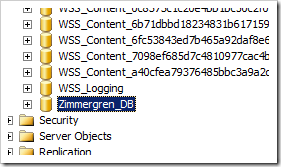
SQL Server dislpaying the Zimmergren_DB for use with External Lists in SharePoint using BCS.
In this sample database, I’ve added a table called ProductList which, in theory will represent some products in this database, like this:
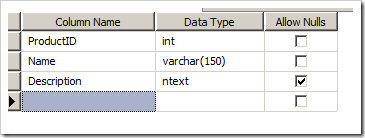
A ProductList table in SQL Server
I’m filling the database with some sample data, so we will be familiar with this data when we later watch this information from SharePoint:
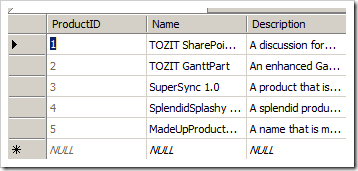
A table with products inside SQL Server, which will later be rendered in SharePoint.
Alright – we have some sample data in our SQL Server. Nothing fancy, just some very simple data. Great, let’s get going with the fun stuff!
Creating an external content type
The most effective and easy way to set up a simple BCS connection is to use SharePoint Designer 2010. You heard me, we can now get up and running with BCS by using SPD instead of modeling complex ADF files and things like that.
To do this, we need to create a new External Content Type!
Here’s how to create our External Content Type and hook it up with our database, step by step:
- Open the site you want to work with using SharePoint Designer 2010
- Select “External Content Types” in the left-hand navigation:
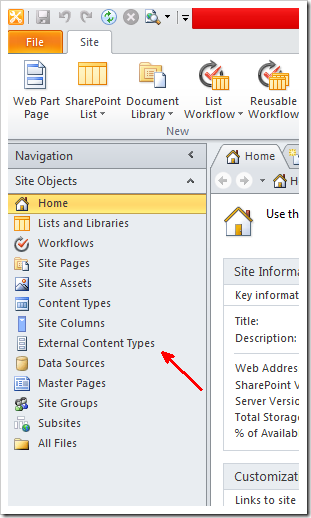
Use SharePoint Designer to manage External Content Types.
Loading this page might take some time, be patient!
- Click to create a new External Content Type like this:
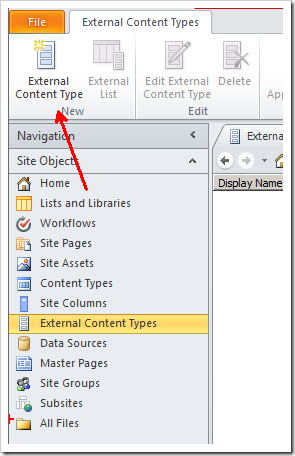
Create new External Content Type from SharePoint Designer
- Click the link that reads: “Click here to discover external data sources and define operations”:
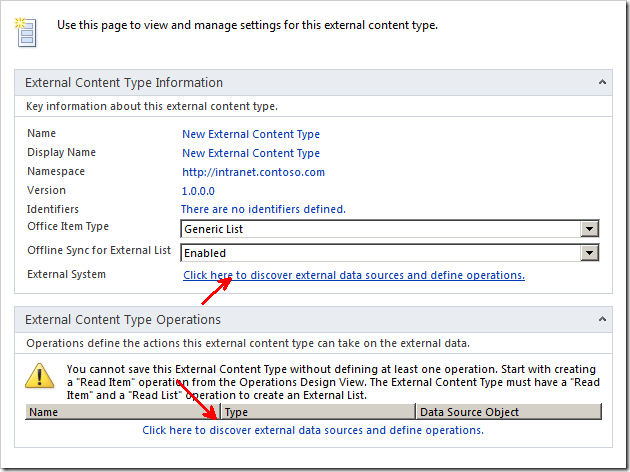
Discover external data sources and define the operations for the new external content type.
- Click “Add Connection”
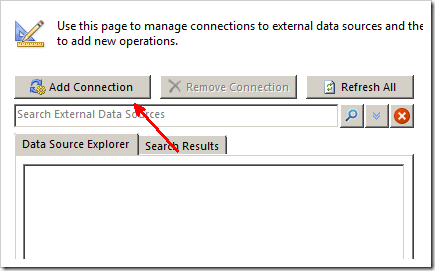
Add a connection to an External Data Source in SharePoint Designer.
- Select “SQL Server” as your Data Source Type:
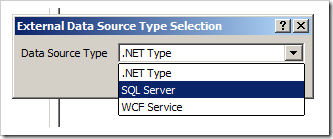
Select between .NET, SQL Server, or WCF Service when connecting to an External Data Source from SharePoint Designer.
- Enter the details about your connection to your SQL Server:
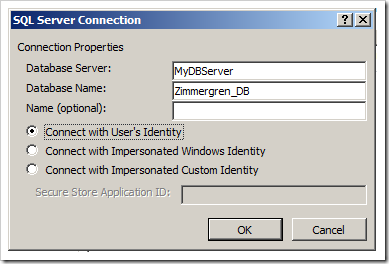
Define the connection details to the SQL Server when connecting to an external data source from SharepPoint Designer.
- When the connection is made, your Data Source Explorer will be filled with the database you have specified. Now choose the table you want to work with, and right-click and select “Create All Operations”:
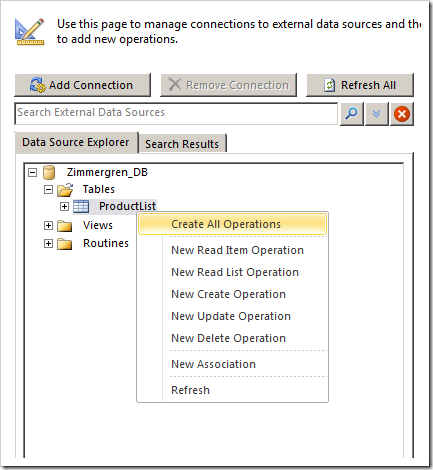
Create all the operations (CRUD) for the new data source.
You’ll be presented with a wizard-like dialog where you can specify the operations, elements and other properties for your BCS connection.
- Click “Next” to get to the Parameters page
- Select the field that you want to act as an Identifier. In my case I’ve selected my ProductID just to get on with it:
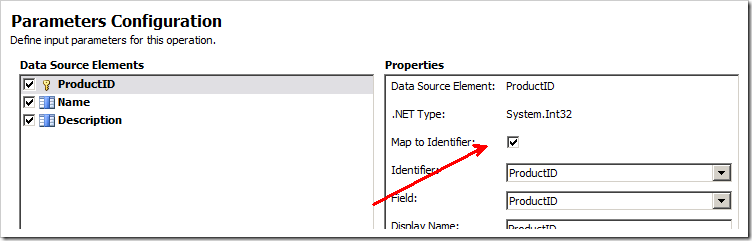
Map the Product ID as an identifer.
- Click “Finish”
- You’ll be presented with a list of operations that your External Content Type can do, like this:
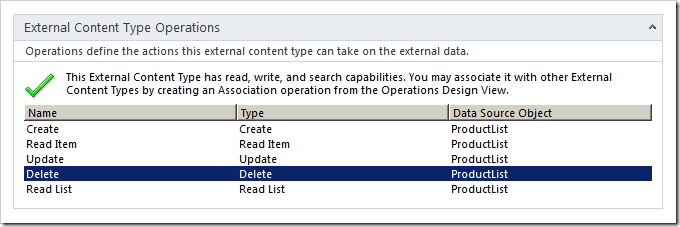
An overview of the defined operations.
That’s it. A few points, a few clicks – and you’re done. Let’s create an external list (using the Browser to show how simple it is..) and hook up our external content type with it!
Creating an external list
There are a few ways to create an external list in SharePoint 2010. We will create it using the Browser UI to show you how simple it can be.
- Open your site and choose Site Actions – More Options…
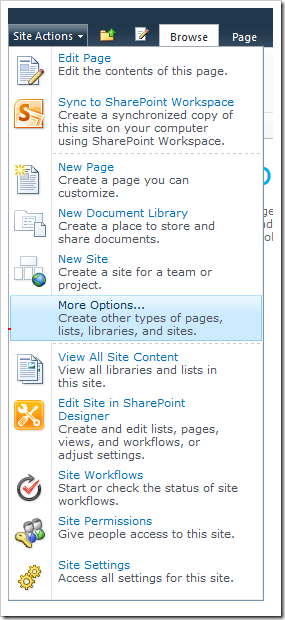
Select “More options…” from Site Actions in SharePoint 2010.
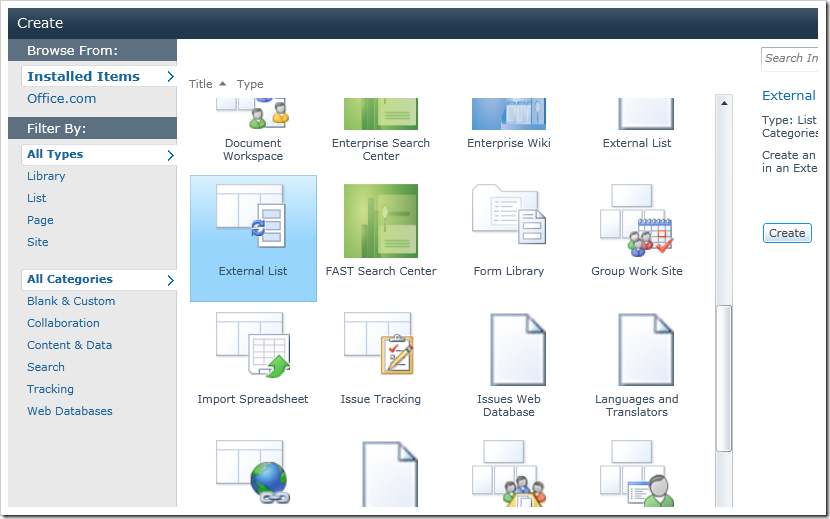
- Select the External List template, and click Create
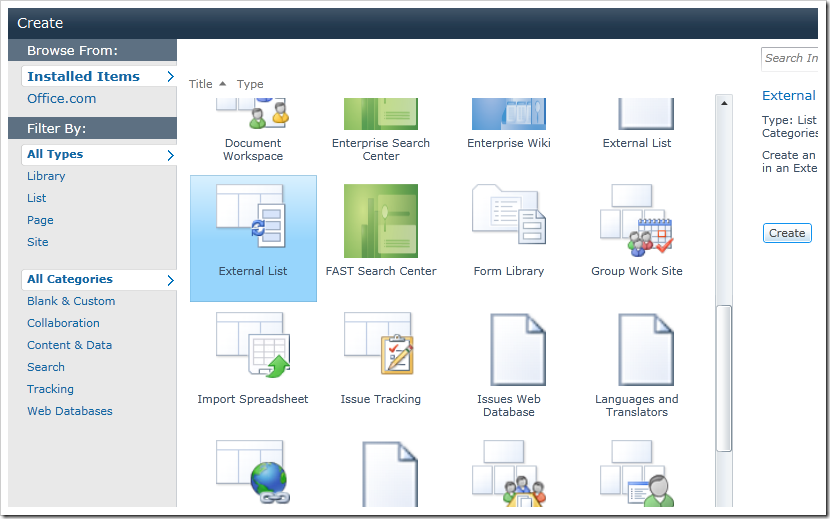
Create an external list from SharePoint 2010.
- Enter a name for your list, e.g. Product List
- You’ll see a field in this list called External Content Type, click the browse-button beside it:
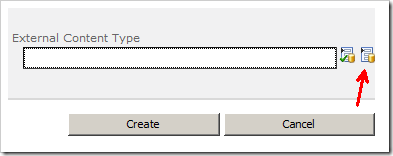
Select the external content type to use for the External List.
You are now presented with a dialog where you can choose the data source for this list. That means you’ll select the data source you’ve created (mine is called Zimmergren_DB). Then your list will automatically work against the SQL database, but still, have the look and feel of a SharePoint 2010 list.
- Select your data source and click OK:
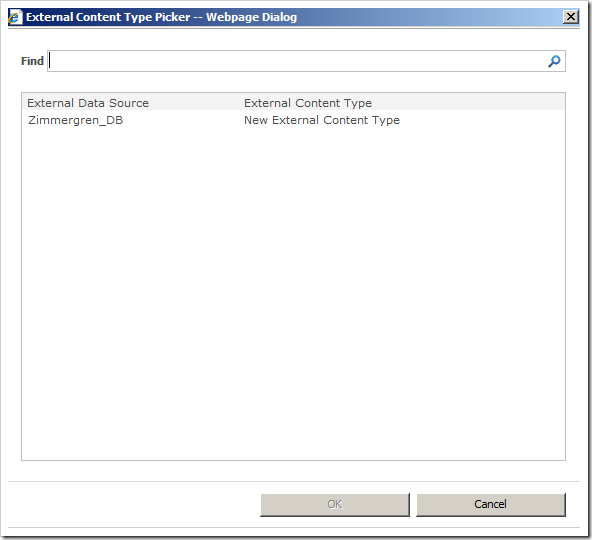
Picking an external content type in the Picker dialog.
- Now click the button called Create:
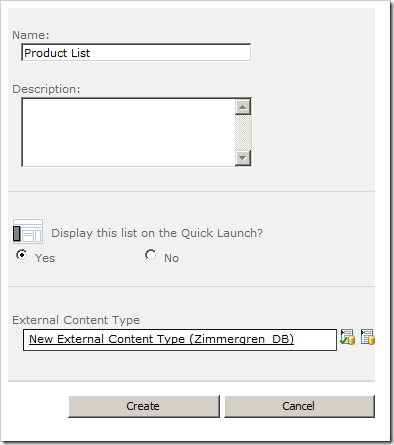
Create the Product List, which is now mapped to your External Content Type.
You’re now working with external data from your (what looks to be) regular SharePoint list! This is brilliant!
You now have the ability to create new items, update existing items, delete items and do all your normal CRUD operations (CRUD = Create, Read, Update, Delete) straight from the SharePoint 2010 list.
Proof of concept – Adding a new product
Let’s just for the fun of it add a new product called “Awesome Product 1.0” like the following screenshot:
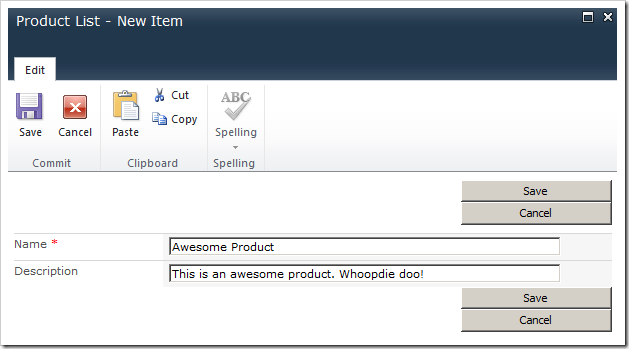
Add a list item to the SharePoint External List, to verify that it appears in the SQL Server.
Now go to your SQL Server and see the changes take effect immediately. The data is NOT stored in SharePoint, it’s stored in your SQL Database.
This is what my table now looks like in the SQL Server, after adding a new item in the SharePoint list:
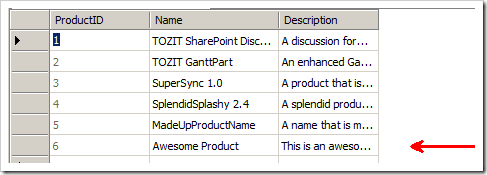
We can see that the products added from the External List in SharePoint has indeed been added to the SQL Server.
Summary
With a few points, followed by a few clicks – you’ve set up your external data connection. Basically, it’s that simple.
Of course there’s a lot of things to consider when doing these configurations – and you might not want to auto-generate the CRUD-operations but rather create them one by one and specify more fine-grained permissions, etc.
This is merely a sample to show you how easy it is to actually get up and running with the SharePoint 2010 Business Connectivity Services (BCS) and work with external data!
Enjoy


Comments are closed
Archived comments
images are not working.. please update it
Reddy,
The images are working again.
Regards,
Tobias
Very interesting. Thanks for putting this together
Hi Rick,
You're most welcome - I'm glad you liked it.
Cheers,
Tobias.
It's a nice article on BDC..
Thank you Raghu, I appreciate the kind feedback.
Tobias.
Hi ,
Excellent article, but at the end i'm receiving
"Access denied by Business Data Connectivity.
Correlation ID:a29ba2a8-7846-4bb8-9829-0ca5cf1b8f09"
Error , not sure if there is authentication mismatch
Central Administration - Application Management - Manage service applications - Business Data Connectivity Service
Select the external content type you created earlier and click on Set Object Permissions
I wrote a post about this back in 2010: http://zimmergren.net/techn...
Bengt is on the right track.
Tob.
Hi,
This article is very nice. But can anyone can tell my requirment is-If i delete any items from list then it should delete from list but should delete from sql table so that I can track which item is deleted from list. Please help me out.
If you want verbose logging on what happens when you delete something from the SQL Server my best guess is you'll have to look into triggers or some type of event handling on the actual SQL server. BCS and external lists doesn't support event receivers or events in SharePoint 2010 the same way as it does in normal lists. SharePoint 2013 has some cool new updated features for this though!
what would be the difference in adding SQL database as a external content type or a data source?
thanks..nice article...:)
Hi Pavan,
Thanks - I'm glad you liked it!
Cheers,
Tobias.
very helpful article. thank u so much for ur efforts
I'm glad you liked it.
Cheers,
Tobias.
The link to the second article is broken (aswell).
This link works:
http://zimmergren.net/techn...
Thanks for the heads up Caroline. A few broken links was the result after migrating the blog from one platform to the other.
Cheers,
Tob.
hi,
have a small problem.
i developed ECT among Development Database.
and now i want to change the connection with the same ECT to Production DB.
with minimum changes.
and of course leave the Development environment .
THanks,
Omri
Hi Omri,
Well the changes you need to do depends on where you store your connection string to the database really. If your development DB and your production DB looks the same (which they should do, in a best practice scenario) it should only be a matter of swapping the actual connection string.
/ Tob.
Thanks for your reply,
the thing is i need to keep my Dev environment and to create new at production database of course. the Share point only point to different site.
how i duplicate the setup from development and create it on Production DB .
Many Thanks,
Omri
Hi Omri,
If I understand you corrently you want to keep your development environments (and be connected to Development DB) and have a production environment which uses Production DB.
There's various ways to accomplish the different environments and different connection strings. One way that I've been successfully doing myself is something similar to this:http://www.silver-it.com/no...
Swapping the SiteUrl this way is easy and you can have your way with the other settings and connection strings etc.
Have a look at that article and see if you can make sense of it - it's pretty good.
Cheers,
Tob.
Hi Tobias,
how could I do input validation in this scenario? Is there a way to handover database error messages (e.g. thrown by triggers) to Sharepoint so that it's being shown to the user?
Thanks and regards
Hey Marc,
There's various ways to take care of validation. The approach I've chosen in several implementations is by using jQuery to add client side validation. Should you encounter error messages anyway, you could handle it programmatically but it should really be taken care of before it heads on over to the data source.
Check out this article I wrote on BCS and customizing the forms: http://zimmergren.net/misc/...
See the section about modifying the display forms. You can use the same type of approach for modifying New- and EditForms and hence add your own custom client side logic to them.
Cheers,
Tob.
Thanks To Share This Article
But Could you suggest me how to change DB schema by external list. for example i want to add one new column in external list which reflect in DB Schema also, But i am unable to add..because there is no option to add new column in external list...
Very Nice article on BCS.. Helpful.. Thanks a lot...
Hi Dinesh,
Thank you for your comment. Glad it could help you :-)
Cheers,
Tobias.
Very helpful and precise article. Thank you
Hi Suman,
Thank you for the comment. Appreciated.
Tobias.
thanks for this article i add one external list for xyz database and i want to add one more external liat to same xyz databad how?
Hi tobias..
This is excellent guide. I wanted to create and connect an SQL Server DB to an already existing SP list. Just like we create a linked table in MS Access database using SQL Server. Is that possible?
Thanks
Hi Tobias, please fix the screenshots in the article.
Hey @meghnathmiryala:disqus ,
Unfortunately this post was written 8 years ago and the blog has moved a few times since, and during this transition I've lost some screenshots. If I will be able to recover them, I'll update the post!
Thanks,
Tobias
Use Internet Explorer instead of Chrome.
Actually @meghnathmiryala:disqus / @DC, the screenshots are working again after a manual migration recovery from the old platform to the new. Thanks for pointing it out! (No need for Internet Explorer, and I wouldn't recommend using it - if you want to go with something else than Chrome, best bets are Edge or Firefox :) )
Hi,
How to update the external data source name in the existing bcs files.Please help us.