The two following questions are quite popular in my SharePoint 2010 developer training classes, so I ought to answer them right here.
- “What does LINQ to SharePoint really do?”
- “Can I see the CAML query generated by the LINQ to SharePoint query?”
The answer is simple: Yes, you can see the results of your generated LINQ query by using the Log property of your DataContext object.
What CAML lied behind my LINQ to SharePoint query?
In order to fetch the CAML query that lies behind your LINQ query, all you need is to work with the .Log object of your DataContext.
See this simple example, which simply outputs the CAML query to an XML-file for easy reading:

This will essentially generate the following content in the file C:\MyEntitiesDataContextQuery.xml:
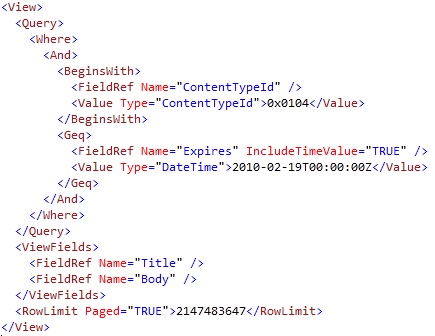
As you can see, the LINQ to SharePoint query is automatically turned into a CAML Query.
Summary
Yep, all you need is the .Log property to fetch the CAML query from your LINQ statement. In my sample I’m outputting it to a file called C:\**MyEntitiesDataContextQuery.xml**.
You could of course output it in any other way you want – not just a physical file on the file system. The Log property is of the type TextWriter.
Enjoy!


Comments are closed
Archived comments
It is really helpful to have the queries logged in a file. But do you know under which account the file is created on the file system? Is it under the the app pool account or the currently logged user (assuming it is a windows account)?
Hi,
You shouldn't save it to the filesystem in a production environment; The sample is just for getting the data easily as a developer. I would rather debug the data stream if you want to dig into it during runtime - but please do avoid saving this to disk during production use, as it would be a pretty unhealthy practice :-)
Cheers,
Tobias.